
Order Guide
Step 1: Visit the product detail page
If you plan to purchase multiple items at once, click the Add to Cart button to add all goods to your shopping cart, and settle all items in a single order later.
If you want to place an order for this product immediately, click the Buy Now button directly.
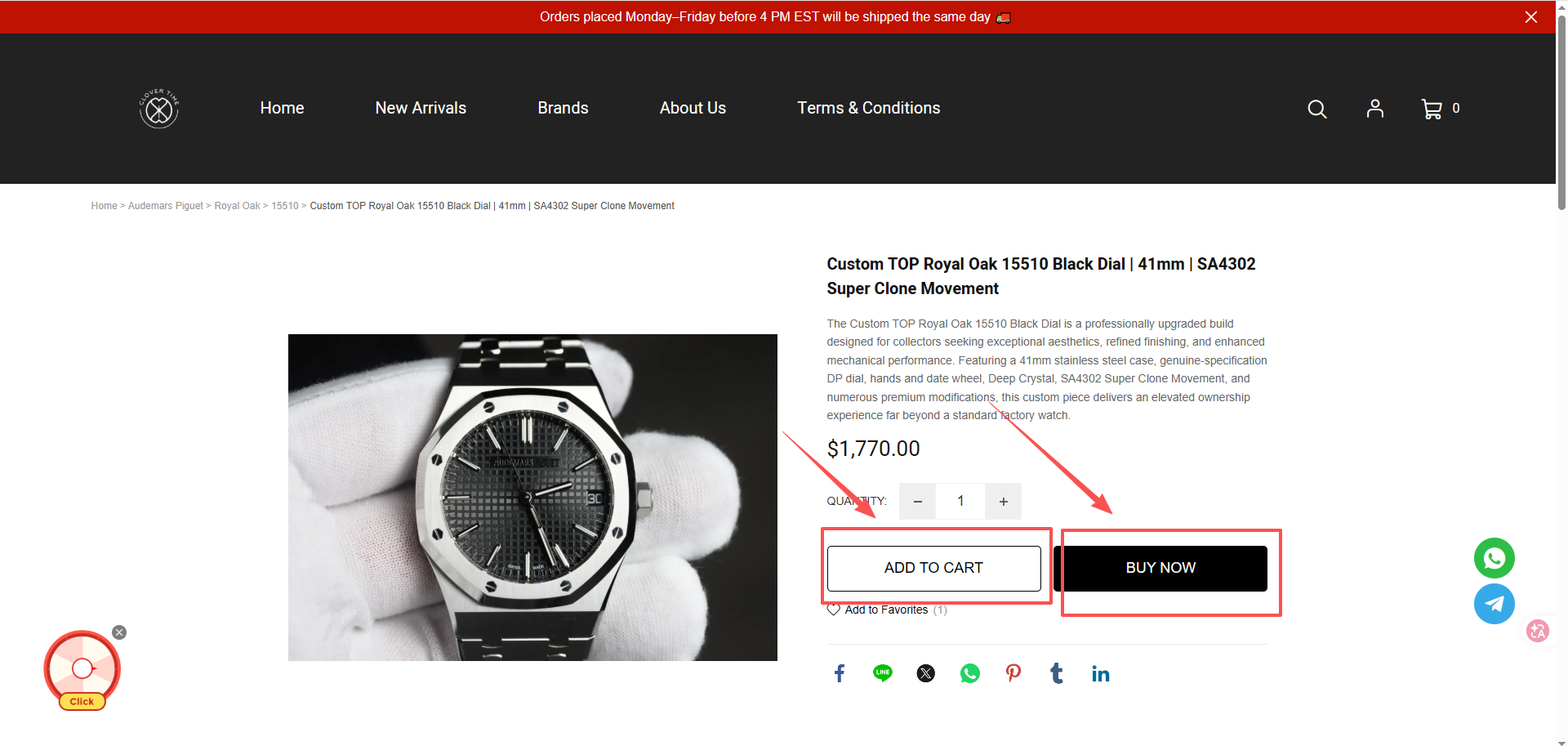
If you want to place an order for this product immediately, click the Buy Now button directly.
Step 2: Check out from your shopping cart
After adding multiple products to the cart for one combined order, click the cart icon to jump to the shopping cart page, then click the CHECK OUT button to proceed with your order. Please note that once you add an item to your cart, it will be reserved exclusively for you for 10 minutes. During this time, no one else can purchase it. If checkout is not completed within the 10-minute reservation period, the item will be automatically released and made available for purchase by other customers.
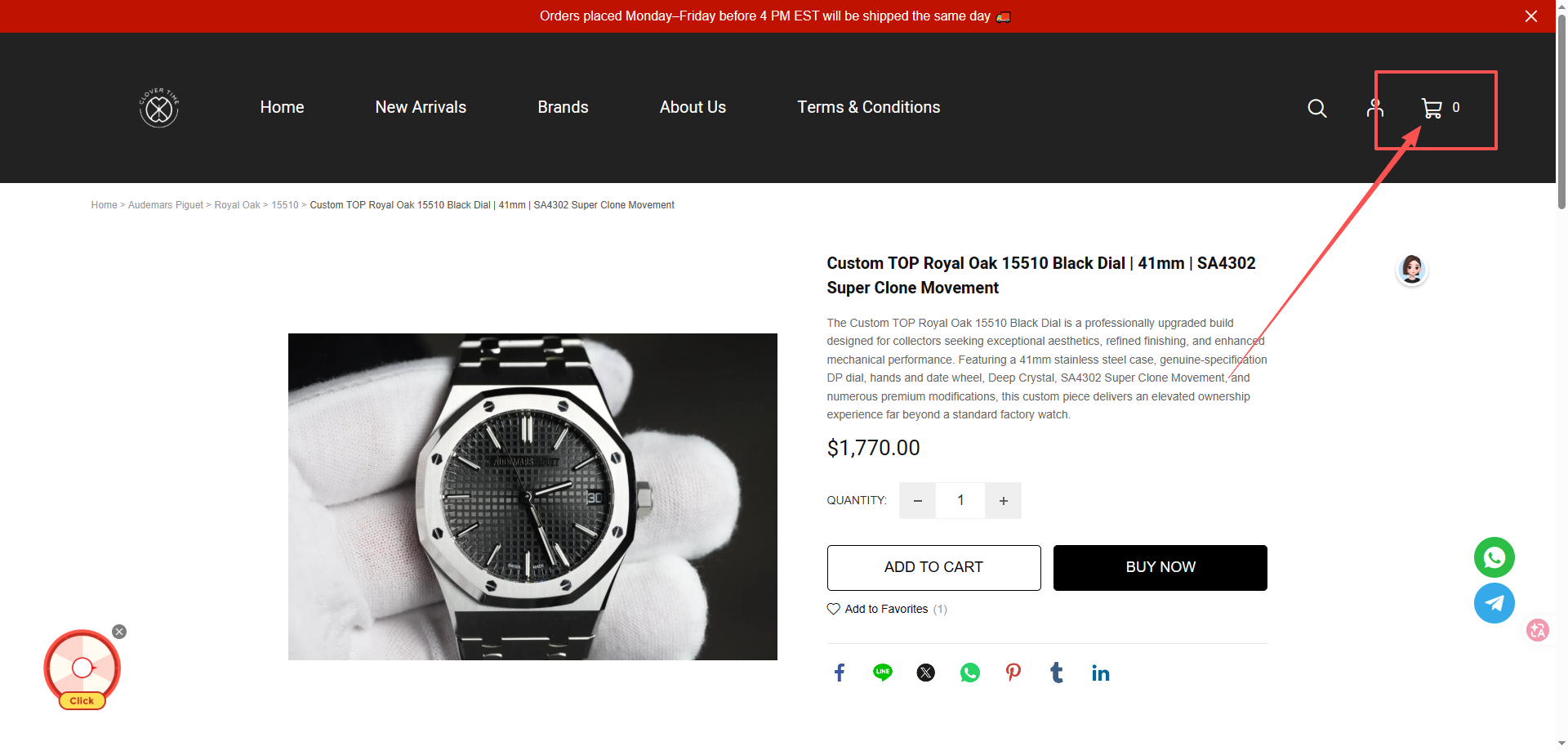
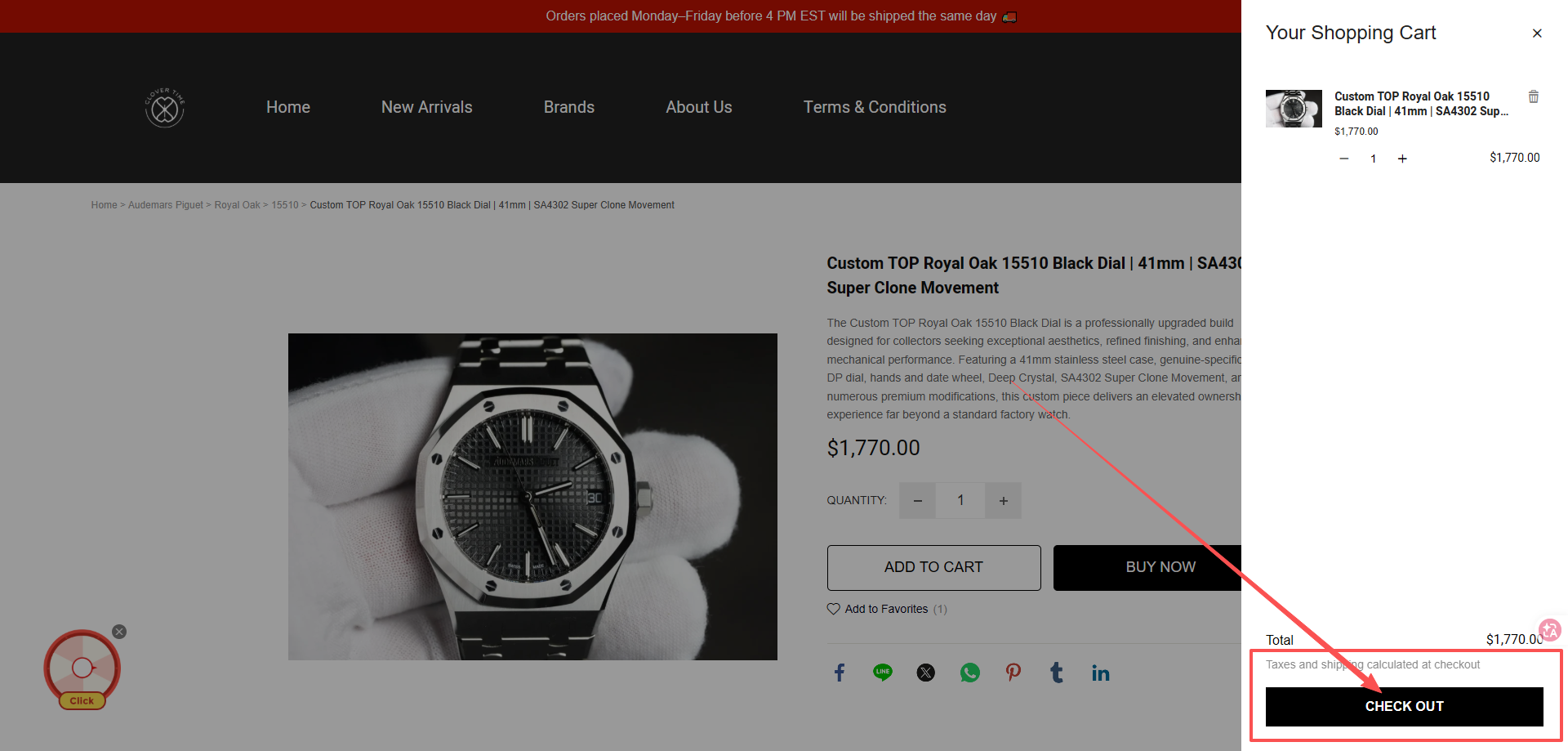
Step 3: Fill in information and submit your order
Fill out your email address and shipping address, select your preferred shipping method and payment method. You manually have to send payment to the paypal address provided as we do not have the capability to directly process through merchants.
Click the Complete Order button to submit the order, then finish payment or upload your payment receipt.
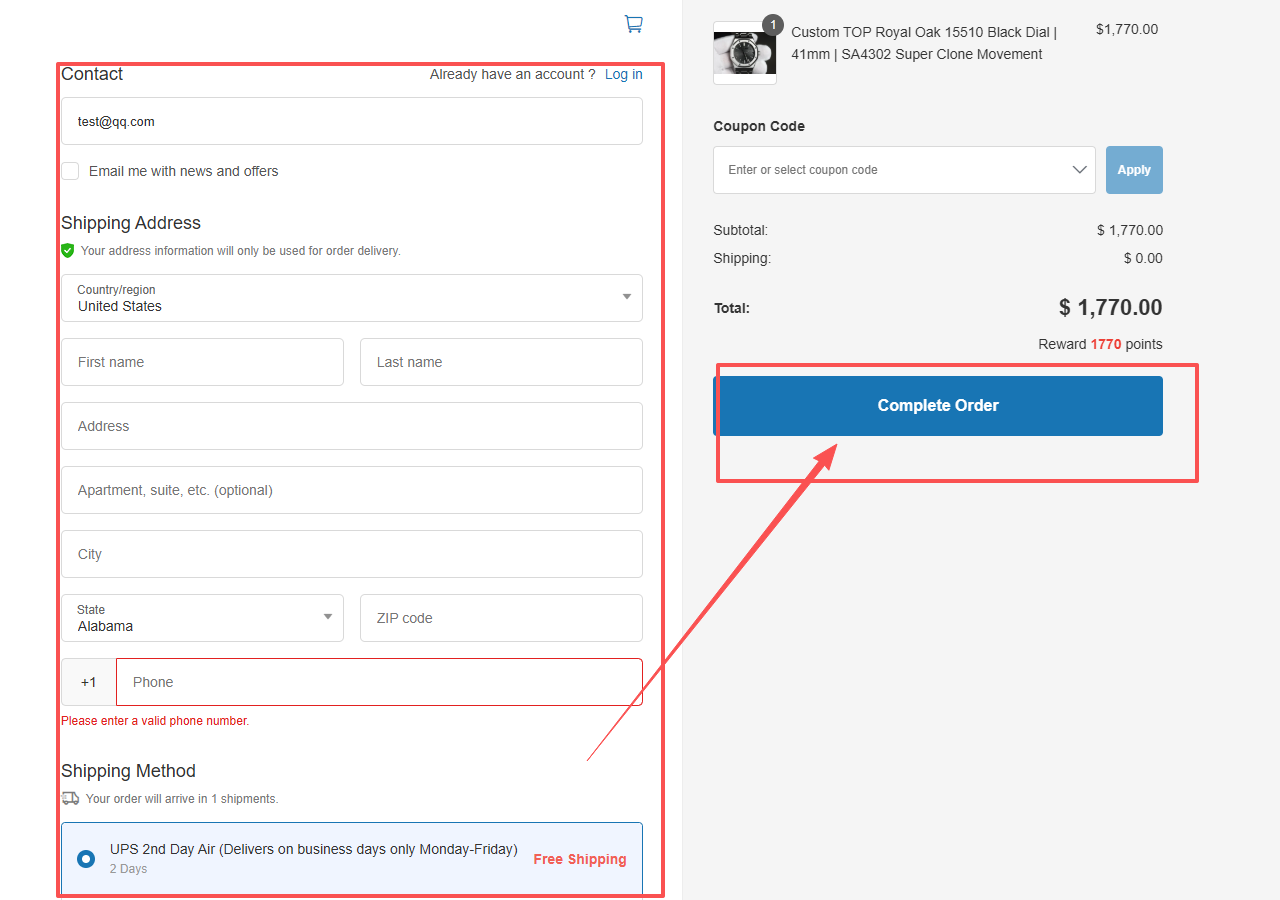
Step 4: Upload payment proof
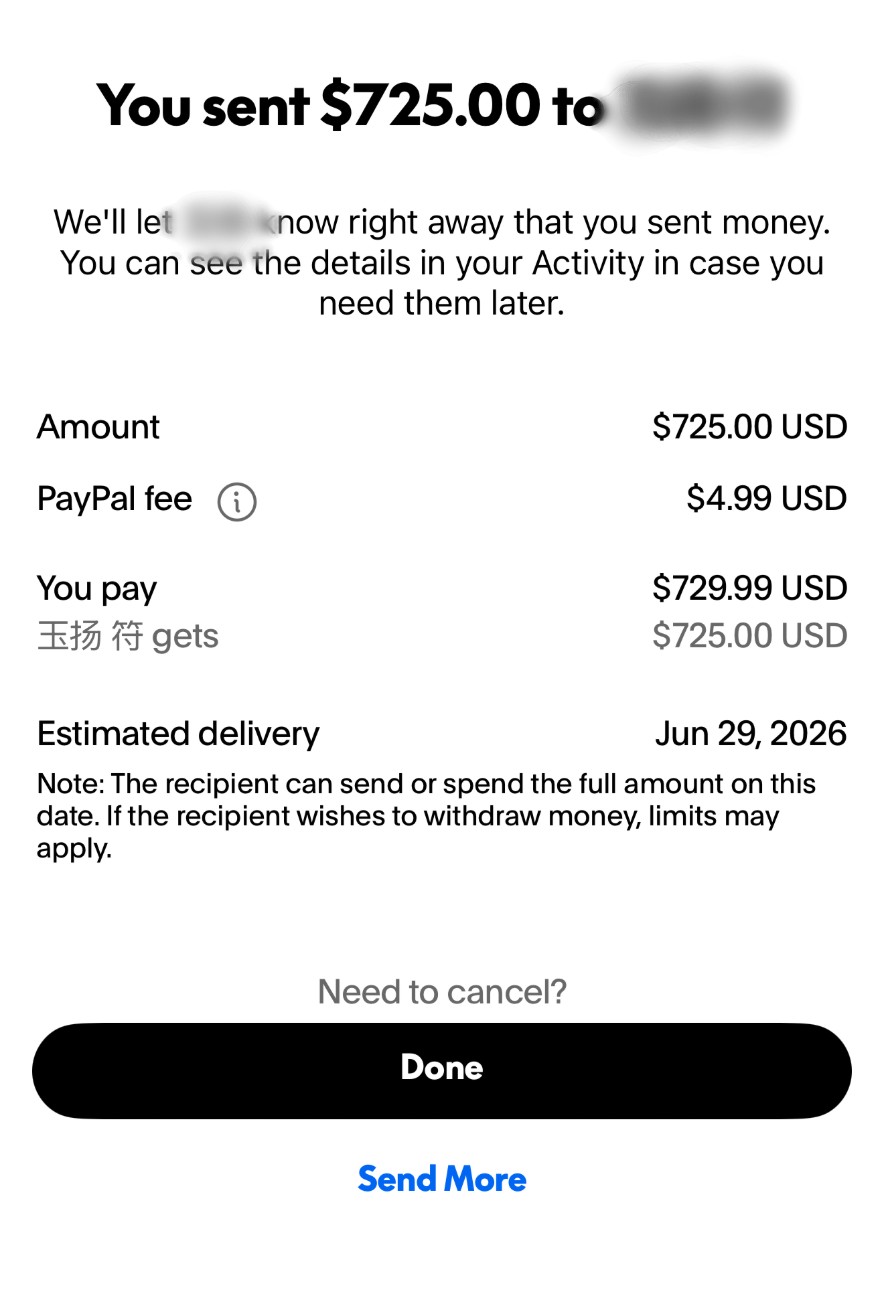
Once your order is submitted, you will be redirected to the payment proof upload page. Click the Add payment proof button, and upload a screenshot of your PayPal payment receipt. This is what a PayPal payment receipt might look like or similar:
Your order will not be processed until your payment confirmation has been received. If a screenshot is not uploaded within the 10-minute reservation period, your reservation will expire, the item will be returned to inventory, and it may be purchased by another customer. After finishing the information entry or screenshot upload, click Submit to finalize your order and submit your payment information.
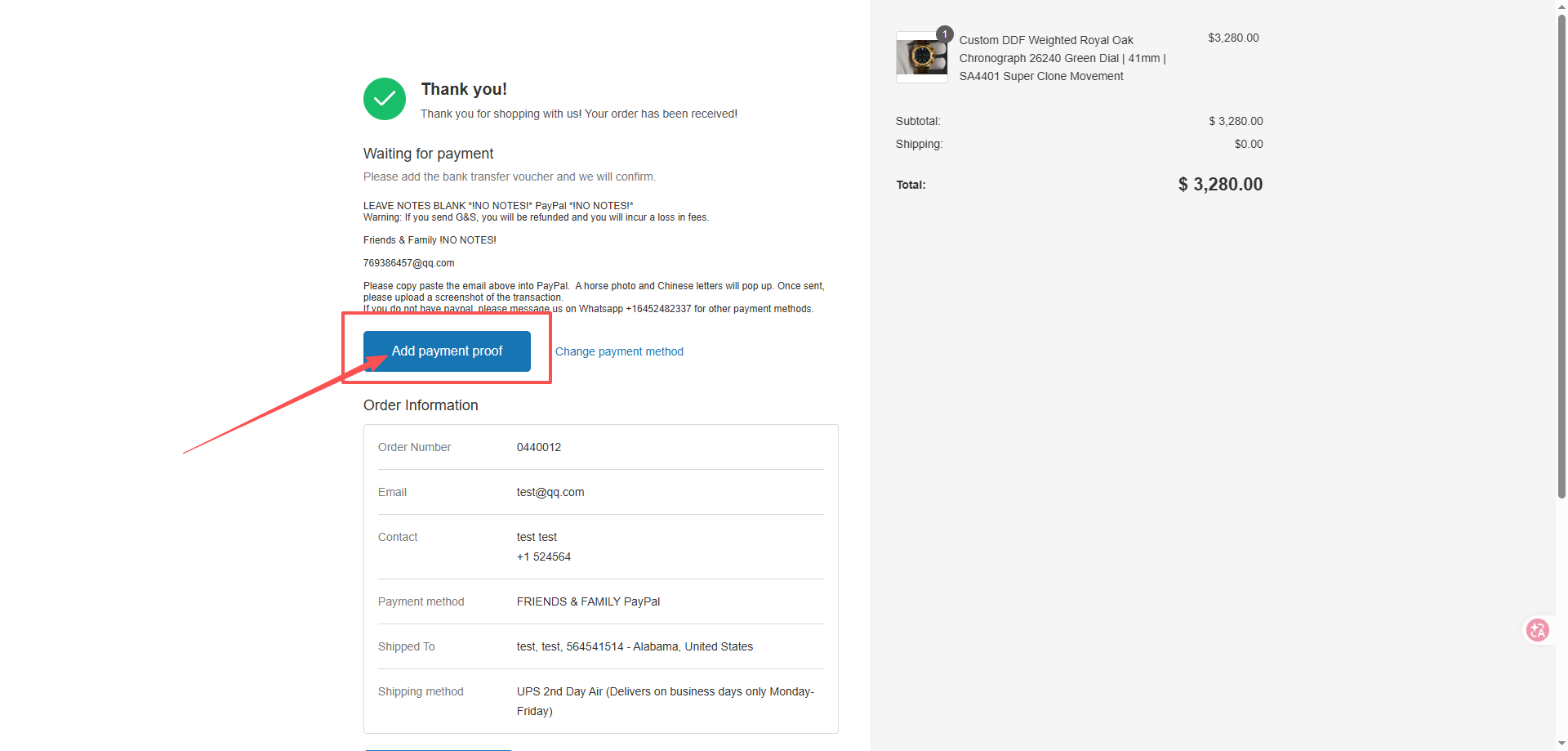
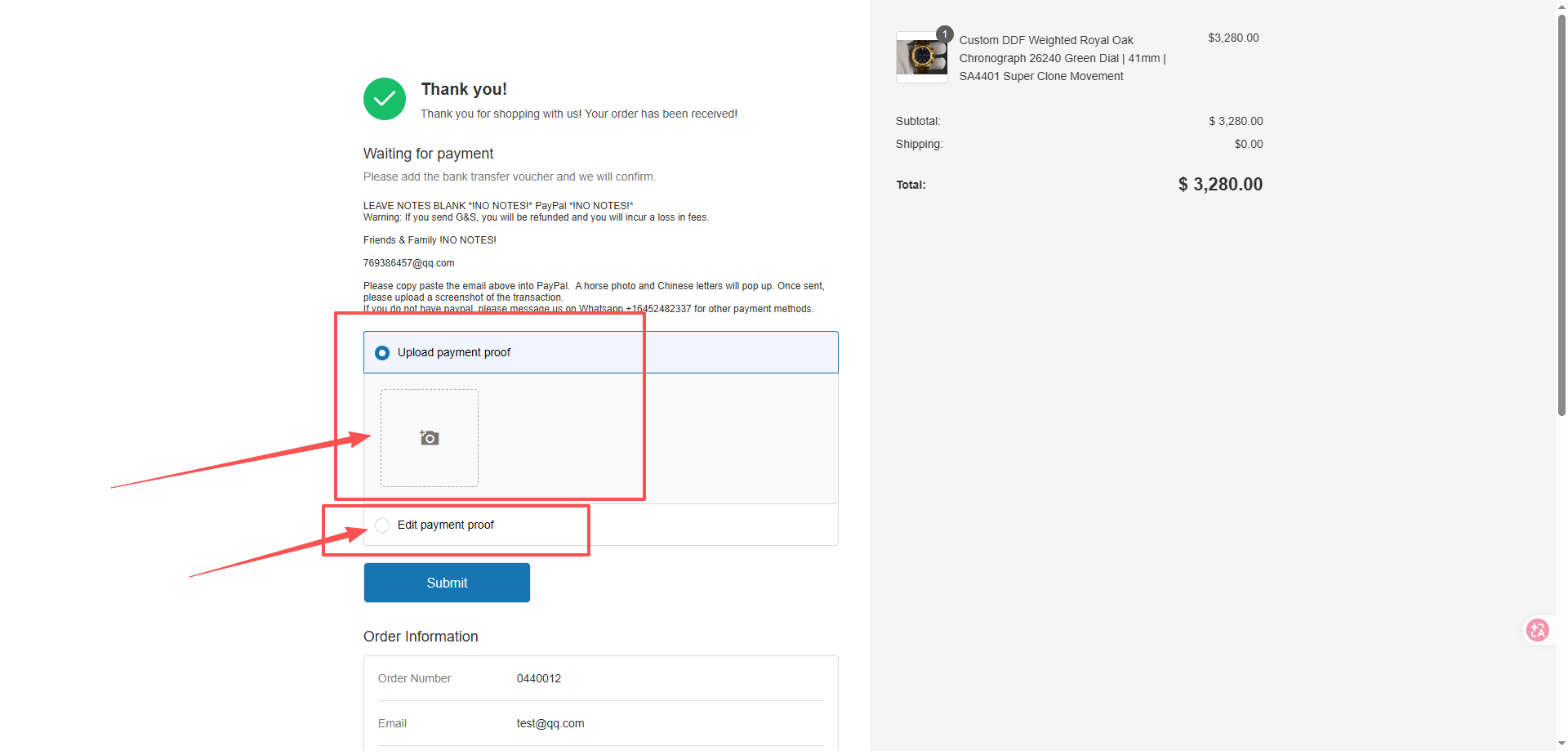
Your order will not be processed until your payment confirmation has been received. If a screenshot is not uploaded within the 10-minute reservation period, your reservation will expire, the item will be returned to inventory, and it may be purchased by another customer. After finishing the information entry or screenshot upload, click Submit to finalize your order and submit your payment information.
